


TimeShow Watch Faces
2.2128.00 Reviews
App Specs
- Version
- Varies with Device
- Updated On
- License
- Free
- Downloads
- 100,000+
- Developer
- TimeShow
- Categories
- Personalization
- Platform
- Android
Screenshots
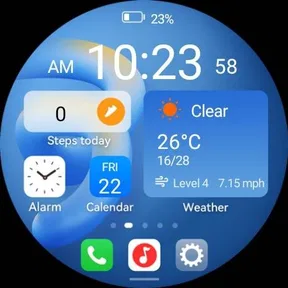
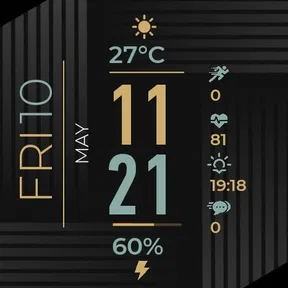
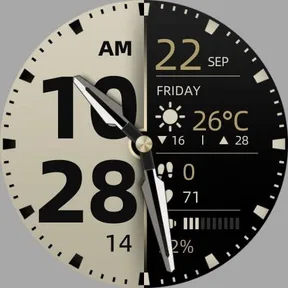
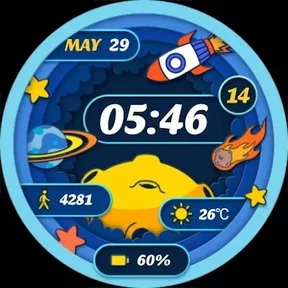
 Analysis by AppCompare
I’d start with one watch face, one clear purpose, and a little patience rather than treating a new design as a one-tap makeover. TimeShow Watch Faces is a personalization app from TimeShow for people who want to change how a compatible wearable looks and what information is visible at a glance. Its focus is watch faces, including support for Galaxy Watch 7, so it makes most sense if you enjoy adjusting your wrist display instead of sticking with the default.
The app is free to install and is rated for Everyone, but some items cost extra through in-app purchases ranging from $0.49 to $29.99. That matters if you are browsing mainly for free designs: I’d check the price attached to a face before investing time in customizing it. TimeShow has an average rating of 2.1 from around 1,300 ratings, so I’d approach it with practical expectations and judge the experience on your own watch rather than assuming setup will be effortless for everyone.
Where setup can feel less simple than browsing
Choosing a design is only one part of the process. A face has to suit both your taste and the small screen you use throughout the day. A detailed layout may look appealing in a preview but become harder to read when you’re walking, carrying bags, or checking the time quickly. I’d favor legible time and a small number of useful details first, then add decoration only if it remains clear at a glance.
Compatibility is another sensible early check. The app is aimed at wearables and specifically includes Galaxy Watch 7, but wearable setups can depend on the watch and its software working together. Before spending time tailoring a design, confirm that your watch is supported in the app and that the watch is connected to the phone you are using. If a face does not appear where you expect, that does not automatically mean the design itself is broken; the handoff between phone and watch may be the sticking point.
Checks I’d make before customizing
I’d first make sure the watch and phone are paired and communicating, then open the face in the app and follow the available installation steps carefully. Keep the app open while the transfer is underway, and give the watch a moment to catch up before repeating the process. Repeated taps can make it less clear whether the first attempt is still working or a second attempt has begun.
It also helps to separate selection from customization. Try a basic face first, apply it, and check that it shows correctly on the watch. Once that works, adjust its appearance or add information gradually. This is a useful way to narrow down a problem: if the plain version applies but a more elaborate setup does not, you have a clearer idea of which step needs attention.
Recovering when a face does not show up
If a design seems to stall, I would avoid changing several settings at once. Check the phone-to-watch connection, return to the face in TimeShow, and make one fresh attempt. If the watch is still displaying its previous face, verify the active face on the watch itself rather than relying only on what the phone app shows. A short wait and a deliberate retry are usually more helpful than repeatedly switching between screens.
Worth Reading Before You Choose

EA SPORTS FC Mobile 26 Is a Bigger Football Game, but It Takes Time

Flipboard Shows What News Apps Must Do Beyond the Feed

Switching to Android Auto Means Rethinking Your Driving Routine

Google Calendar Makes a Crowded Week Easier to Manage

Ludo King Makes the Most of the Minutes Between Plans

Baby Panda World Brings Quick Play to Modern Phones, but Its Game Library Feels Busy
For a face that applies but looks wrong, simplify it before starting over. Remove optional details or choose a less crowded arrangement, then see whether the essentials are visible. That matters in everyday use: the quickest face to read is often more valuable than the most decorated one, especially when you only glance at your watch between tasks.
When the watch, rather than the app, may be the obstacle
A watch face app cannot fix every wearable issue. If other watch functions are also failing to sync, or the watch is not reliably connected to the phone, I’d troubleshoot that connection before blaming TimeShow. Likewise, a design that is difficult to read at your preferred glance distance may be a poor match for your needs rather than a technical failure.
TimeShow is best for someone who enjoys browsing styles and is comfortable checking compatibility and making a few adjustments. If your priority is the simplest possible setup, you may prefer the faces already built into your watch. Those are usually the easier starting point when you want dependable basics and do not care about exploring a separate catalogue.
Designs That Speak to Your Style
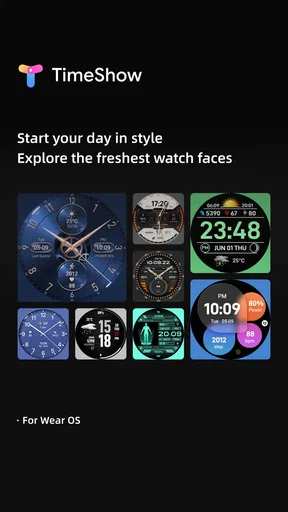
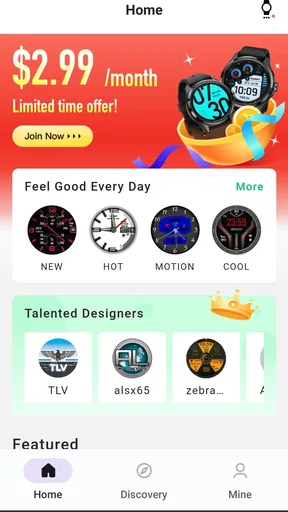
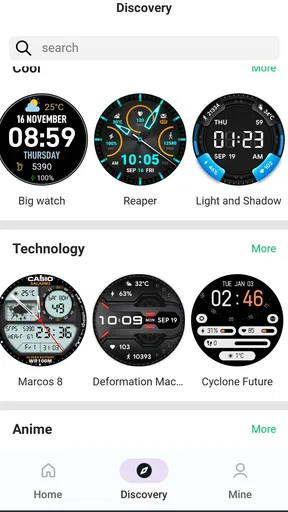
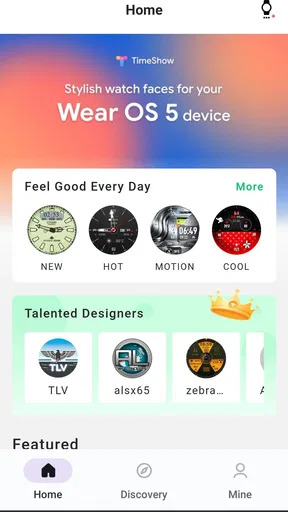
When it comes to personalizing your smartwatch, TimeShow Watch Faces delivers a buffet of options. Whether you’re into sleek minimal designs or bold, colorful patterns, this app has got you covered. I’m talking about a selection that ranges from elegant to downright funky. And if you’re someone who likes to switch things up often, the variety here is a huge plus.
One of my favorite features is the ability to customize each face. You can tweak colors, add widgets, or even throw in a cute little background. It’s like having a mini art project right on your wrist. And the best part? It's super easy to navigate, so you don’t need to be a tech wizard to get your watch looking fly.
Functionality Meets Flair
Now, it’s not just about looks. These watch faces are functional too. You can integrate weather updates, step counters, or calendar events right into the design. For someone like me who’s always on the go, having quick access to this info without digging through apps is a lifesaver.
Another neat feature is the battery optimization. I was a bit skeptical at first, worried that these vibrant designs would drain my battery faster than you can say "low power mode." However, the app is smart about it, ensuring your watch’s battery life remains intact while still looking sharp.
User Experience That Hits the Mark
Let’s talk about the user experience. Installing and setting up new watch faces is a breeze. The app’s interface is intuitive, and everything is laid out in a way that makes sense. I didn’t find myself lost or frustrated at any point, which is a huge win in my book.
Plus, the app is compatible with a wide range of smartwatches, so chances are, it’ll work with yours too. I’ve heard friends rave about using it on different devices with zero hiccups, which is always reassuring.
Choosing faces for an actual day
For a practical routine, I’d keep one design focused on information and another reserved for style. On a busy morning, a face that puts the time and calendar details where I can spot them quickly is more useful than a striking background with tiny text. Later, when I’m heading out with fewer things to check, I can switch to something more expressive. Thinking in terms of use rather than collecting designs helps keep the watch helpful instead of visually busy.
This is also where customization has a trade-off. Adding more widgets may save a trip through the watch’s apps, but each extra element competes for space. I’d choose the information I actually check every day—perhaps steps or weather—and leave the rest off. A face that answers one recurring question clearly can be more useful than a layout trying to show everything.
Community and Updates
One thing that stands out is the community aspect of TimeShow Watch Faces. The app frequently updates with new designs, often inspired by user feedback. It’s clear they listen to their audience, which keeps the experience fresh and exciting.
There’s also an active user community where you can share your creations or get inspiration from others. I’ve picked up a few tricks just by browsing what other users have concocted, and it’s a fun way to connect with other smartwatch enthusiasts.
How I’d weigh it against the built-in options
The usual alternative is simply keeping the watch’s included faces, and that remains the better choice if you want a familiar layout with minimal setup. TimeShow appeals more when the default selection feels limiting or you enjoy matching the watch to your clothes, mood, or the kind of day ahead. It adds a discovery element that built-in options may not offer in the same way, but browsing and trying designs also asks more of your time.
I’d treat the catalogue like a place to find a few keepers rather than something to explore endlessly. Save your attention for faces that solve a specific problem—clearer information, a calmer look, or a style you genuinely enjoy. If you mainly want a watch to show the time and do not plan to personalize it, a separate app may add little value.
Wrapping It Up
So, is TimeShow Watch Faces worth a download? Absolutely. Whether you’re looking to make a bold statement or just want a touch of elegance, this app has something for everyone. It’s more than just a pretty face; it’s functional, user-friendly, and continually evolving with new updates and features.
There are a couple of practical qualifications I’d keep in mind. TimeShow was released on December 29, 2022, and its Android minimum is 8.0. It has passed 100,000 installs, but its modest average rating is a reason to check that it suits your particular watch and expectations before buying a paid design. I’d begin with a free option, test how it looks and behaves in your normal routine, and only then decide whether spending on another face makes sense.
If you’re ready to give your smartwatch a fresh look, I’d say give it a go. You might just find yourself checking the time a little more often, just to admire your new watch face. Check out the download link on our site and start your smartwatch makeover today!
Pros
- Wide variety of customizable watch faces.
- User-friendly interface for easy navigation.
- Regular updates with new designs.
- Low battery consumption for extended use.
- Compatible with most smartwatch brands.
Cons
- Limited free designs; most are paid.
- Occasional syncing issues with some devices.
- Some designs lack interactive features.
- Ads can be intrusive in the free version.
- Requires constant internet connection for updates.
FAQs for TimeShow Watch Faces
What is TimeShow Watch Faces?
TimeShow Watch Faces is a customizable app designed for Android and iOS devices that allows users to personalize their smartwatch displays. It offers a variety of watch face designs, from digital to analog, catering to different styles and preferences. The app provides an easy-to-use interface for customizing colors, widgets, and additional features.
How do I install and set up TimeShow Watch Faces?
To install TimeShow Watch Faces, download the app from the Google Play Store or Apple App Store. Once installed, open the app and follow the on-screen instructions to connect your smartwatch. You can then browse through various watch face designs, select your favorite, and customize it according to your preferences before applying it to your watch.
Are there any costs associated with TimeShow Watch Faces?
TimeShow Watch Faces offers a free version with a variety of basic watch face designs. However, for access to premium designs and additional customization features, users may need to purchase a subscription or pay for individual watch faces. Details on pricing and subscription plans can be found within the app or on the developer’s website.
Can I customize the watch faces in TimeShow Watch Faces?
Yes, TimeShow Watch Faces provides extensive customization options. Users can adjust colors, add widgets like weather or step counters, and choose different layouts. The app aims to offer a personalized experience, allowing users to tailor their smartwatch display to suit their individual style and functionality needs.
Is TimeShow Watch Faces compatible with all smartwatches?
TimeShow Watch Faces is compatible with most popular smartwatch brands, including those running on Wear OS and watchOS. However, compatibility may vary depending on the specific model and operating system version. It’s recommended to check the app's compatibility details on the download page to ensure it will work with your device.


